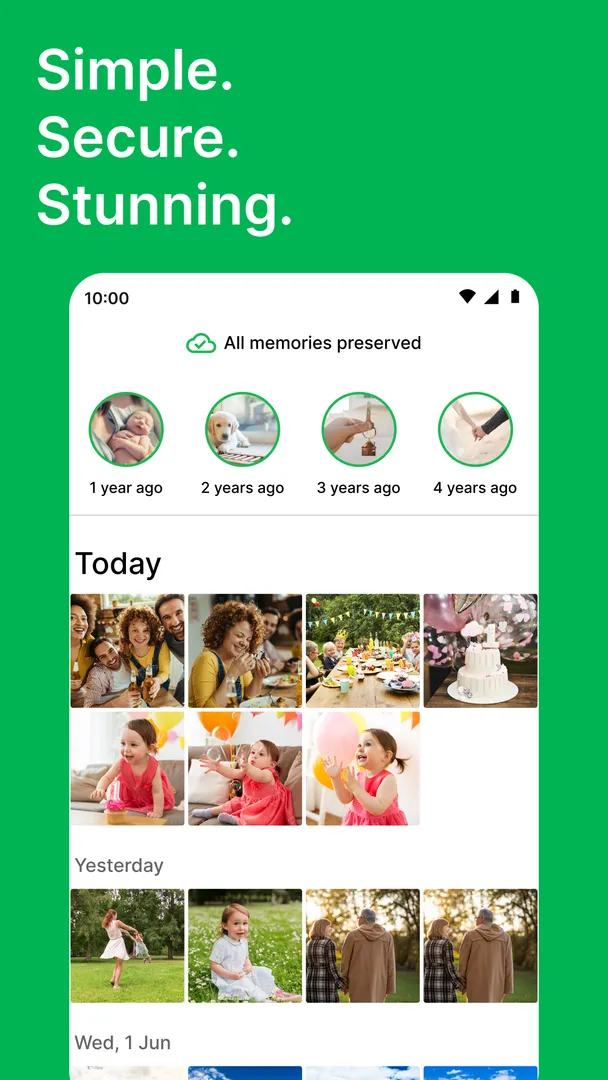
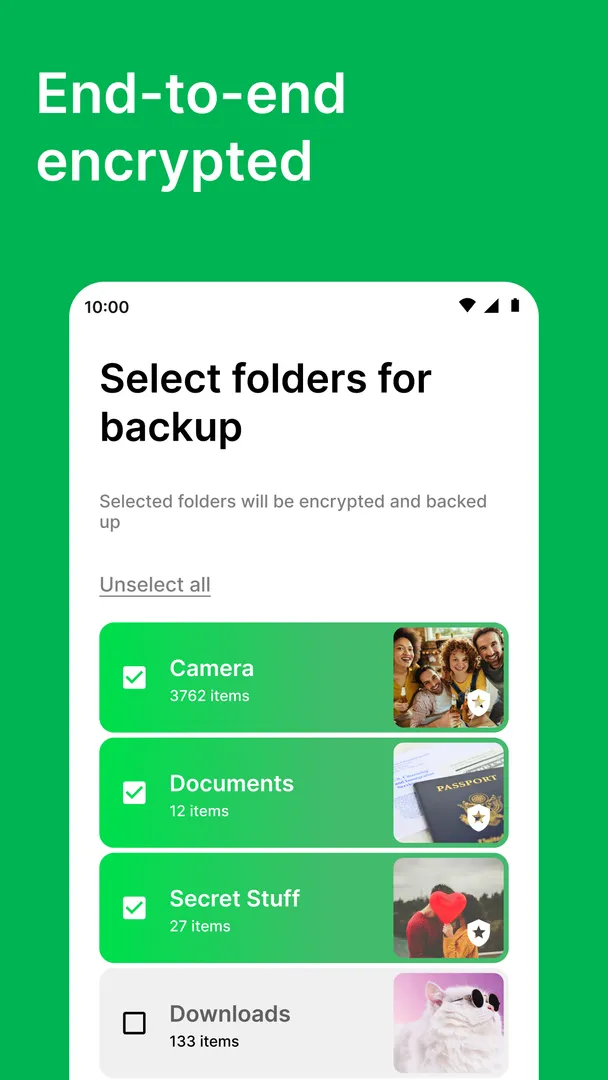
Ente Photos is an open source Android app for backing up and sharing your photos and videos with end-to-end encryption. Only you can view the files you store, and the same library syncs across the developer's apps for Android, iOS, web and desktop.
The developer positions Ente Photos as a privacy-friendly alternative to Google Photos. Instead of a free tier funded by your data, Ente Photos runs on paid storage plans that you can share with your family. The build on this page comes from F-Droid and is licensed under AGPL-3.0-only.
Below you will find what Ente Photos does, how its permissions map to its features, how to install the APK, what you should know about its reliance on a paid online service, and whether it fits the way you manage your photo library.
What is Ente Photos?
Ente Photos is the Android client for Ente, a service built to store and share photos and videos. The developer describes it simply: an app to back up and share your photos and videos. Everything you upload is end-to-end encrypted (e2ee) before it leaves your phone, which means the service holds data it cannot read.
The service has open source apps on Android, iOS, web and desktop, and your library syncs between all of them in an end-to-end encrypted way. According to the developer, your encrypted data is replicated to three different locations, including a fallout shelter in Paris, with the goal of making sure your memories outlast you.
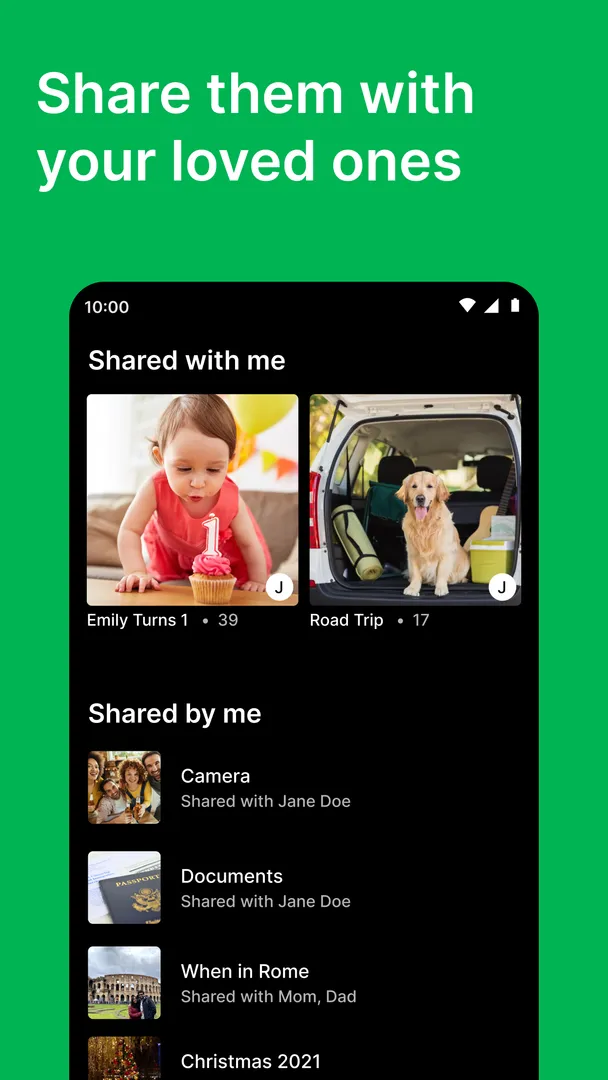
Sharing is a central part of the design. You can share albums with people who do not use Ente, through public links that let them view an album and even add photos to it without an account or the app. You can read more on the official website, and the code is public on GitHub. On ApkSpark the app sits in the Photography category.
Key features of Ente Photos
End-to-end encrypted backup: Photos and videos are encrypted on your device before upload, so only you can view them. This is the core promise of the service and the main reason to choose it over a typical cloud gallery that can read your files.
Original quality backups: Ente Photos backs up files at original quality rather than compressing them. The developer's reasoning is that every pixel matters, which is useful if you shoot high-resolution photos or want an exact archive.
Cross-platform sync: Your library syncs between the Android, iOS, web and desktop apps in an end-to-end encrypted way, so photos taken on one device are available on the others without giving up encryption.
Collaborative albums and public links: You can pool photos with others after a trip in a collaborative album. Public album links let people view and add photos without an account or the app, and you can protect those links with a password.
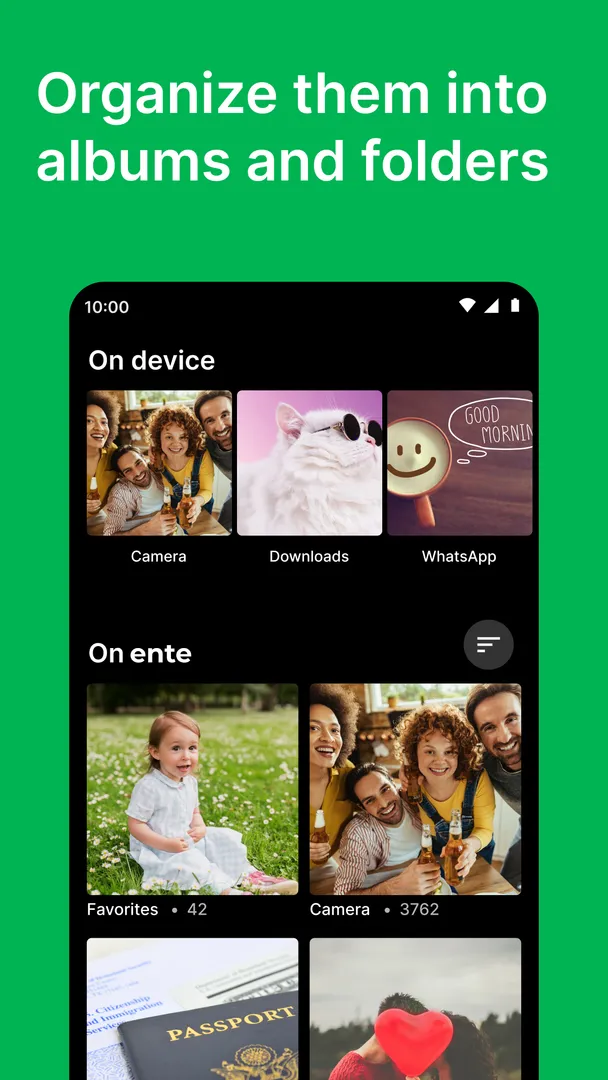
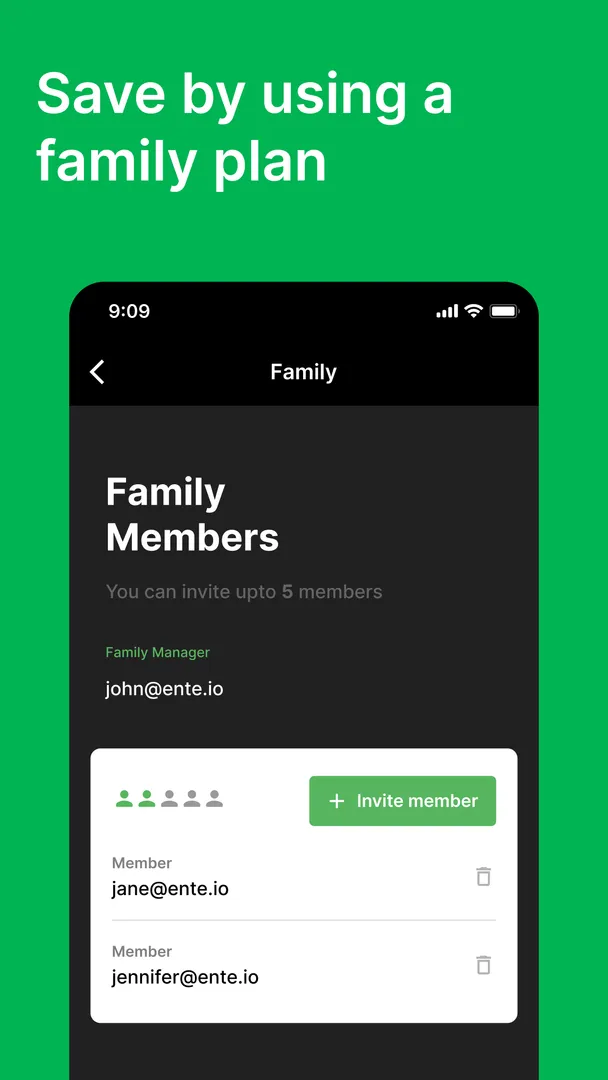
Shared folders and family plans: Shared folders let a partner see the photos you take with your Camera folder automatically. Family plans let you share your storage with family members instead of each person paying separately.
Free up space on your phone: After files are safely backed up, Ente Photos can remove them from your device to reclaim storage, while the copies stay in your encrypted library.
Descriptions, favorites and hidden items: You can add captions to photos so they are easier to find later, mark favorites, hide items you do not want in the main view, and revisit older memories.
Built-in image editor: A simple editor lets you add finishing touches to a photo without switching to another app.
One-click import: You can import your library from Google, Apple, your hard drive and other sources, which makes moving from another service less painful.
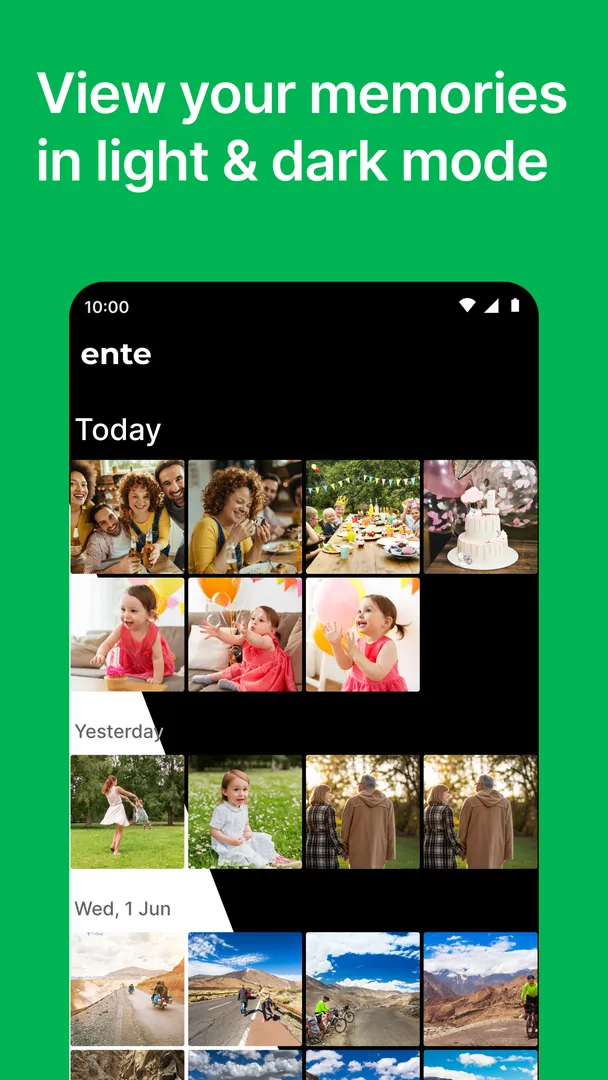
Account security and dark theme: The app supports two-factor and three-factor authentication plus biometric unlock to protect access to your library. A dark theme is also available.
Ente Photos permissions explained
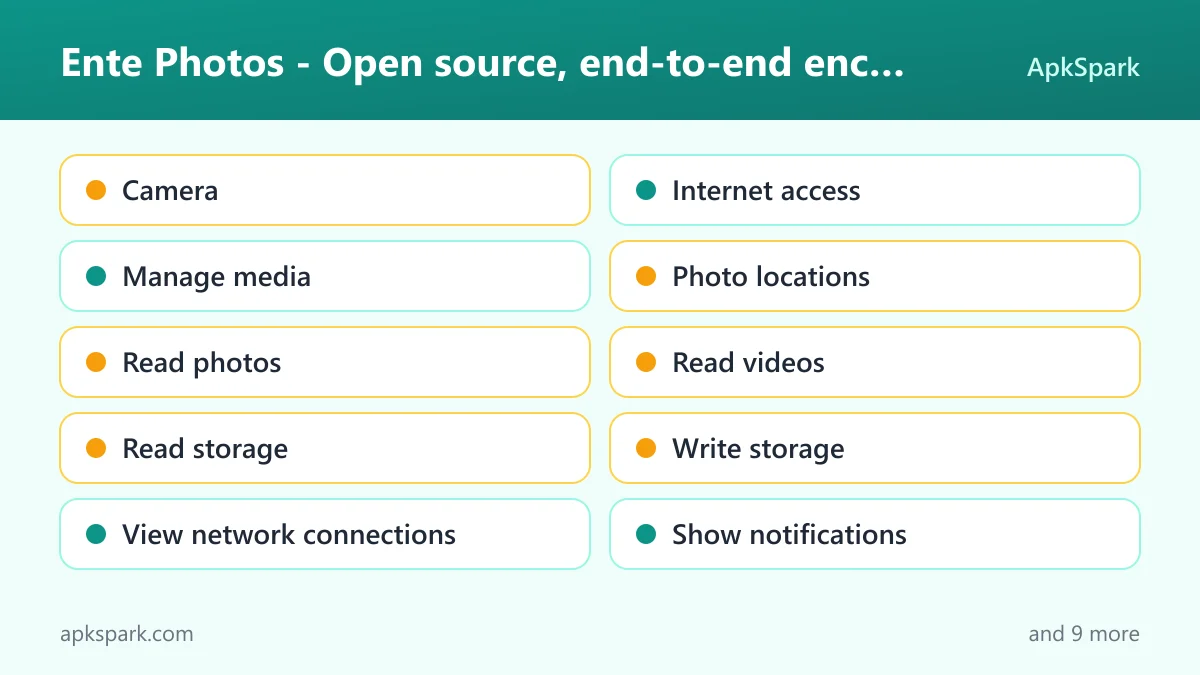
The developer says it requests permissions to serve the purpose of a photo storage provider. Most of them relate directly to reading, backing up and displaying your media. None of them are unusual for a gallery and backup tool, but a few are worth understanding before you grant them. On modern Android, sensitive permissions such as access to photos, videos and the camera are requested at runtime, so the app asks before it uses them.
Camera: Lets the app take photos and record video.
Internet access: Lets Ente Photos connect to the internet, which it needs to upload encrypted backups and sync your library.
Manage media: Allows use of the "manage media" permission, which relates to managing media files on the device. The description does not tie it to a specific feature, though the app does offer to remove files that are already backed up.
Photo locations: Lets the app read the location stored in your photos. This keeps the place where a photo was taken attached to the backup.
Read photos: Lets Ente Photos read images in shared storage so it can back them up.
Read videos: Lets the app read videos in shared storage so they can be included in backups.
Read storage: Lets the app read files in shared storage, which covers other media files you may want backed up.
Write storage: Lets the app save and modify files in shared storage, for example when you save an edited image or download files from your library.
View network connections: Lets the app check whether the device is online and which network type is in use.
Show notifications: Lets the app post notifications. Android 13 and newer ask you first.
Exact alarms: Lets the app schedule alarms at an exact time.
Run at startup: Lets the app start itself after the device boots.
Change Wi-Fi multicast state: Allows use of the "change wifi multicast state" permission. The description does not say which feature uses it.
Set wallpaper: Lets the app change your wallpaper.
Control vibration: Lets the app make the device vibrate.
Biometrics: Lets the app use fingerprint or face unlock to confirm actions, which matches the biometric lock feature.
Prevent sleep: Lets the app keep the device awake while a task runs, such as a long upload.
Run in the foreground: Lets the app keep a visible notification while it works in the background, for example during a backup.
Fingerprint: Lets the app use the fingerprint sensor to confirm actions.
The developer publishes a detailed explanation of these permissions in its source repository, which is worth reading if you want the reason for each one.
How to download and install Ente Photos APK
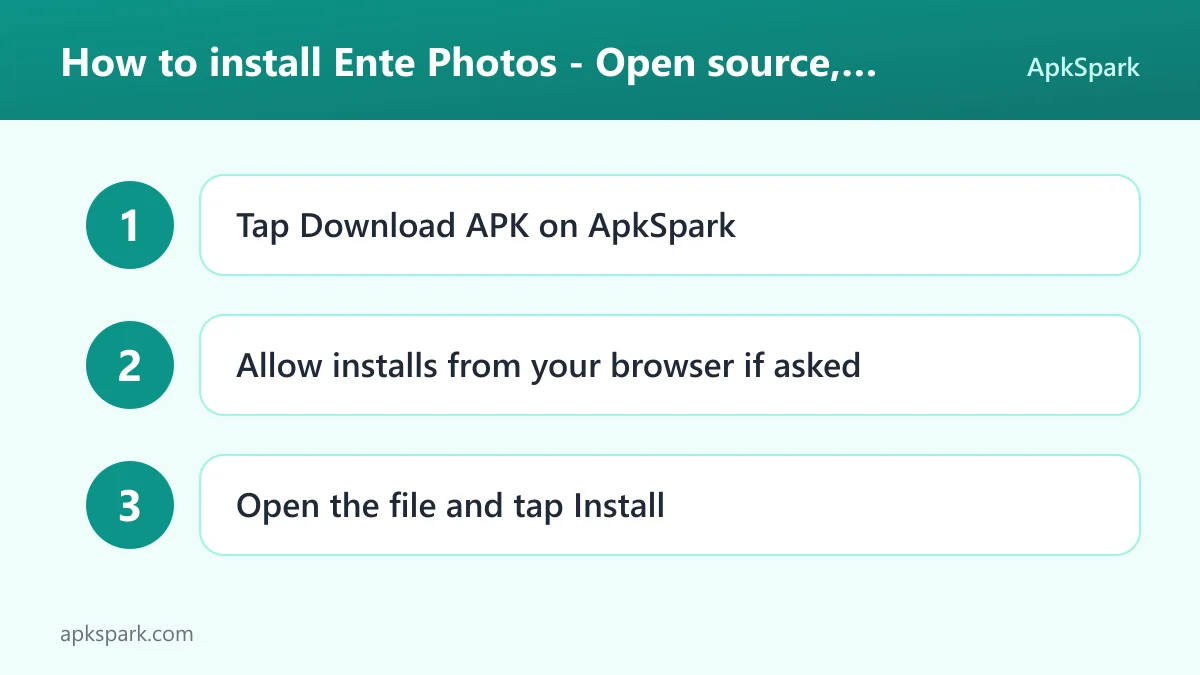
Tap the Download button on this page to get the APK file.
When Android asks, allow your browser to install unknown apps.
Open the downloaded file from your notifications or your Downloads folder.
Tap Install and wait for Android to finish.
Open the app, then sign in or create an account.
If Android blocks the file or you are new to sideloading, our guide to installing APK files walks through the unknown sources setting and common install errors. Note that this APK is large at 321.7 MB, so use Wi-Fi and make sure you have enough free storage before you start.
Is Ente Photos safe?
Ente Photos is released under the AGPL-3.0-only license, and its full source code is public on GitHub. You can report bugs on the issue tracker. Publishing the code for Ente Photos means outside developers can check how the encryption is implemented instead of taking it on trust.
The APK here comes from the F-Droid listing. F-Droid builds this APK from the published source code and signs it with the F-Droid key, and the file is downloaded from the official f-droid.org repository.
F-Droid flags one anti-feature: NonFreeNet, which means the app relies on a non-free network service. In plain terms, Ente Photos is open source, but the storage service it backs up to is run by Ente and is not itself free software. That is the trade-off you accept to get managed, replicated storage. It also means you need a paid plan for ongoing use, since the developer states it does not offer forever free plans.
Your photos are end-to-end encrypted, so the service cannot view them. The flip side is that the strength of that protection depends on keeping your account credentials safe, which is where 2FA and biometric locks help.
It is also worth noting how the replication works. The developer states that encrypted data is copied to three different locations, one of them a fallout shelter in Paris. That spreads the risk of losing data in a single facility, and because the copies are encrypted, extra storage locations do not mean extra parties who can view your photos.
Ente Photos system requirements
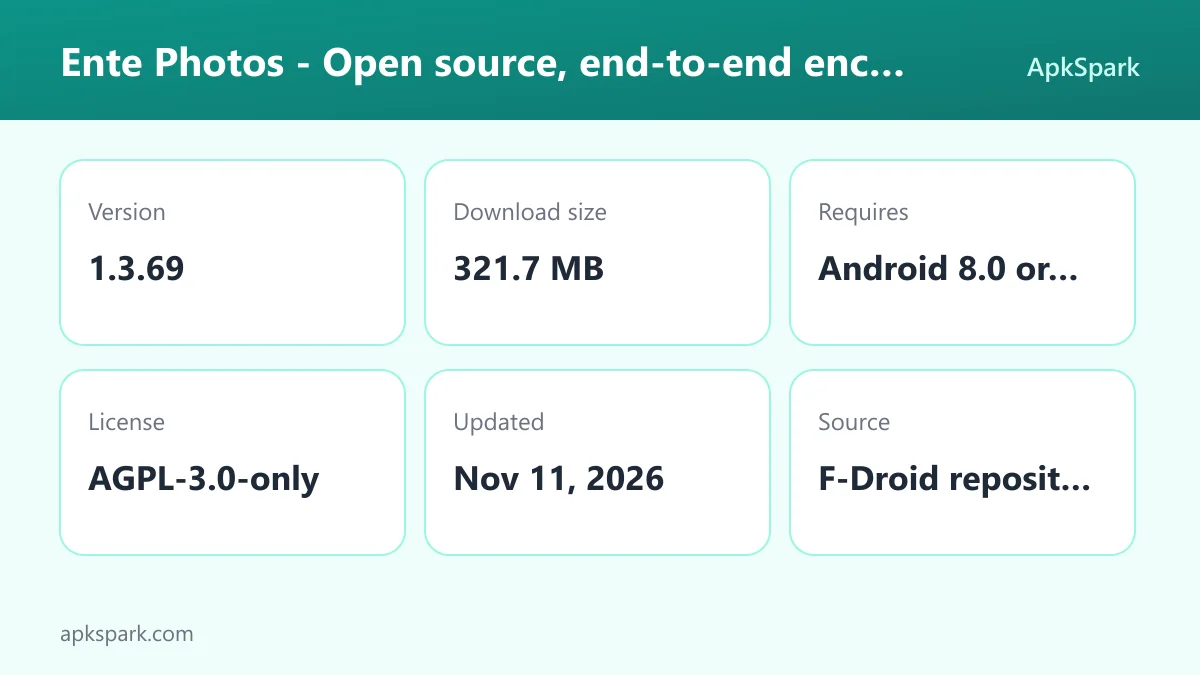
Minimum Android version: Android 8.0 or newer.
Download size: 321.7 MB.
Supported ABIs: arm64-v8a and armeabi-v7a, which covers 64-bit and 32-bit ARM phones.
Version: 1.3.69.
Release date: November 11, 2026.
Account: an Ente account and storage plan are needed to back up files.
Other hardware requirements: not documented.
The download size is unusually large for a gallery app, so plan for it on phones with limited storage. The space-freeing feature can help you recover room once your library is backed up. Since both 64-bit and 32-bit ARM builds are included, most Android phones from recent years that run Android 8.0 or newer should be able to install it.
Who should use Ente Photos?
Ente Photos is aimed at people who want cloud backup for their photos but are not comfortable with a provider being able to see them. If you have been looking for a privacy-friendly alternative to Google Photos, as the developer puts it, this is the audience the service is built for.
Ente Photos also suits families and couples. Family plans let several people share one pool of storage, shared folders let a partner see your camera photos automatically, and collaborative albums make it easy to gather pictures from a trip. Because public links work without an account, relatives who do not use the service can still view and contribute.
It is a poor fit if you want permanent free storage, because the developer does not offer forever free plans. People who want a gallery that never touches the internet will also find that the main value here depends on the online service.
A good test is to ask what you want from a photo app. If the answer is a private, full-quality copy of every picture that you can reach from any device and share on your own terms, the service is built around exactly that. If the answer is local editing and organizing with no account, look elsewhere.
Tips for getting started with Ente Photos
Import your existing library first: Use one-click import from Google, Apple or your hard drive to bring your current photos in, then let Ente Photos back up new photos from your phone.
Turn on stronger login protection: Enable 2FA and biometric unlock so that access to your encrypted library is protected even if someone learns your password.
Free up space carefully: Use the free-up-space option only after the backup finishes. It removes files that have been safely backed up, so confirm your library is complete before you start.
Add descriptions as you go: Captions make memories easier to find later through search, especially in large libraries.
Password-protect shared links: When you send an album link to people outside the service, add a password so only the intended viewers can open it.
Set up a family plan if several people need storage: Sharing one plan can be simpler than managing separate accounts.
A typical workflow with Ente Photos
A common first step is moving an existing collection. With one-click import, you can bring in photos from Google, Apple or a folder on your hard drive. Ente Photos then encrypts each file on your device and uploads it at original quality, so the copy in the cloud matches the file you took.
From then on, new photos on your phone are backed up as part of your library. Because the same library syncs to the iOS, web and desktop apps, a picture taken on your Android phone can be viewed later on a laptop without emailing it to yourself or plugging in a cable.
Once you trust that the backup is complete, the free-up-space option removes local copies that are safely stored. This is useful on phones that fill up quickly with video. Your files remain available in the app, and you can still caption, favorite or hide them from there.
Sharing usually happens after an event. You might create a collaborative album after a trip so everyone can add their shots, or send a password-protected link to relatives who do not have accounts. Ente Photos lets those people view the album and contribute photos without installing anything. For a partner, a shared folder can show your Camera photos automatically.
If something goes wrong, the developer offers human support for paying customers. You can also browse the public changelog to see what has changed between versions before you update.
Documented limitations of Ente Photos
The developer is open about the main constraint: there is no forever free plan, because the company wants to remain sustainable. You will need a paid plan to use the service over time, and pricing details are on the official site. The F-Droid listing also marks the app with the NonFreeNet anti-feature, since it relies on Ente's own servers. Finally, human support by email is offered to paying customers, who can expect a reply within 24 hours according to the developer.
Alternatives to Ente Photos
ApkSpark does not list related apps for this one yet. You can browse more Photography apps to compare other gallery, camera and photo tools, or visit the ente developer page for other apps from the same team.
When comparing options, focus on whether a service encrypts your files end to end, whether it keeps originals at full quality, and whether you can share albums with people who do not have an account. Those are the areas where Ente Photos is strongest.
Final verdict
Ente Photos offers encrypted, original-quality photo backup with cross-platform sync, family sharing and flexible album links, all in open source apps. The F-Droid build is produced from public code under the AGPL-3.0-only license.
The trade-offs are clear: it depends on a paid, non-free network service, and the APK is large. If privacy is the reason you want to leave a mainstream photo cloud and you are willing to pay for storage, it is well worth installing.