Moonlight Game Streaming is a free, open-source Android app that streams games, programs or your full desktop from your own PC to your phone or tablet. The PC does the actual work, running either NVIDIA GeForce Experience or the Sunshine host software, while your Android device shows the video and sends mouse, keyboard and controller input back.
This page covers the F-Droid build, version 12.2, released on November 13, 2026. F-Droid compiles that build from the published source code and signs it with its own key. Below you will find what the app does, what it needs from your PC and network, what each permission is for, and how to install it.
The app is licensed under GPL-3.0-or-later and developed by Cameron Gutman. It has no ads, no in-app purchases and no paid "Pro" version.
What is Moonlight Game Streaming?
Moonlight Game Streaming is a streaming client. It does not run games on the phone, and it does not emulate any console. Instead, it connects to a PC that you own and streams what that PC renders. That PC can be on your home network or reachable over the internet or LTE. You can stream games bought from any store, other programs, or the entire desktop.
Moonlight Game Streaming supports two kinds of host. NVIDIA owners can use GeForce Experience with GameStream turned on in the SHIELD settings page. Owners of any GPU can install Sunshine, a separate host program, and configure it through its web interface. In both cases you pair the phone with the PC by tapping the PC in the app and entering a PIN on the computer.
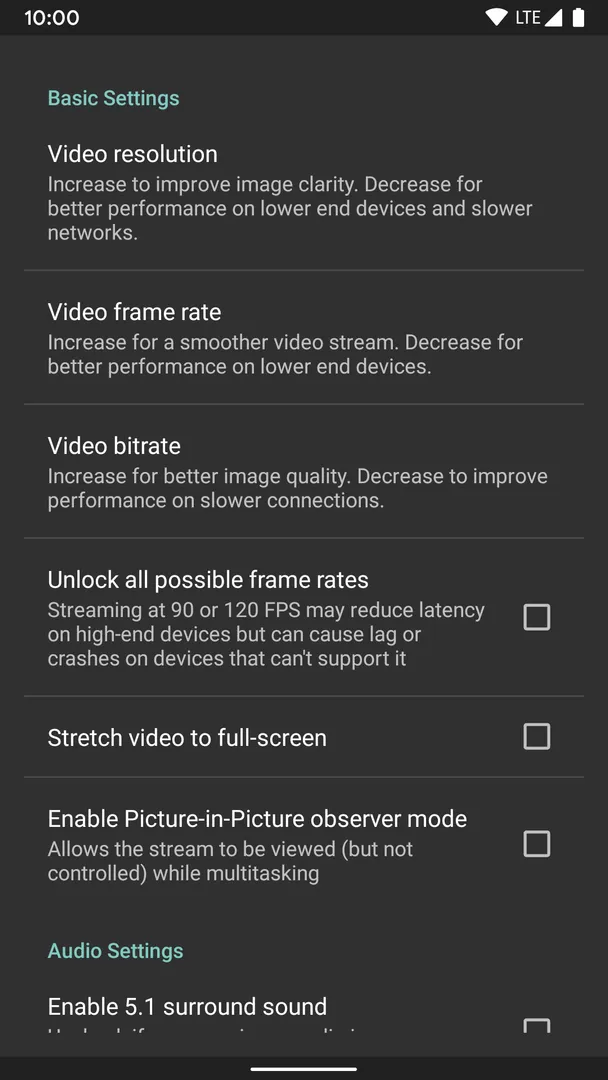
On the quality side, the app supports up to 4K at 120 FPS with HDR and 7.1 surround sound, using the H.264, HEVC and AV1 codecs. Those limits depend on your hardware. HDR needs an HDR10-capable Android device, a GPU that can encode HEVC Main 10 and an HDR10-enabled game. AV1 needs Sunshine and a supported host GPU.
With Moonlight Game Streaming, the developer is clear that performance varies with your client device and network. For a good experience, you need a mid to high-end wireless router with a strong connection to your Android device, ideally on 5 GHz, and a solid link between your PC and router, ideally over Ethernet.
Key features of Moonlight Game Streaming
Free and open source: The app is open source under GPL-3.0-or-later and completely free. The developer states that there are no ads, no in-app purchases and no paid "Pro" tier, so every feature is available to everyone.
Streams games from any store: Because the PC runs the game, you can stream titles purchased from any store, along with other programs or your full desktop. Custom apps can also be added to the list of things to stream.
Home network or internet: Streaming works on your home network and over the internet or LTE. The developer's detailed setup guide covers the extra steps needed for remote streaming and for adding a PC manually if it is not detected.
Up to 4K 120 FPS HDR with 7.1 audio: The highest supported settings are 4K resolution at 120 frames per second with HDR and 7.1 surround sound, provided your device, PC and network can handle them.
H.264, HEVC and AV1 codecs: Three video codecs are supported. AV1 requires Sunshine and a supported host GPU, while HDR requires a GPU that can encode HEVC Main 10.
Keyboard, mouse and stylus input: Keyboard and mouse are supported, working best on Android 8.0 or later. Stylus and S-Pen input are supported too, which can be useful when streaming a desktop.
Wide controller support: PS3, PS4, PS5, Xbox 360, Xbox One, Xbox Series and Android gamepads are supported. Force feedback and gamepad motion sensors work, and long-pressing Start lets you control the mouse with a gamepad.
Local co-op with many controllers: Up to 16 controllers can be connected for local co-op when using Sunshine. With GeForce Experience the limit is 4 controllers.

Moonlight Game Streaming permissions explained
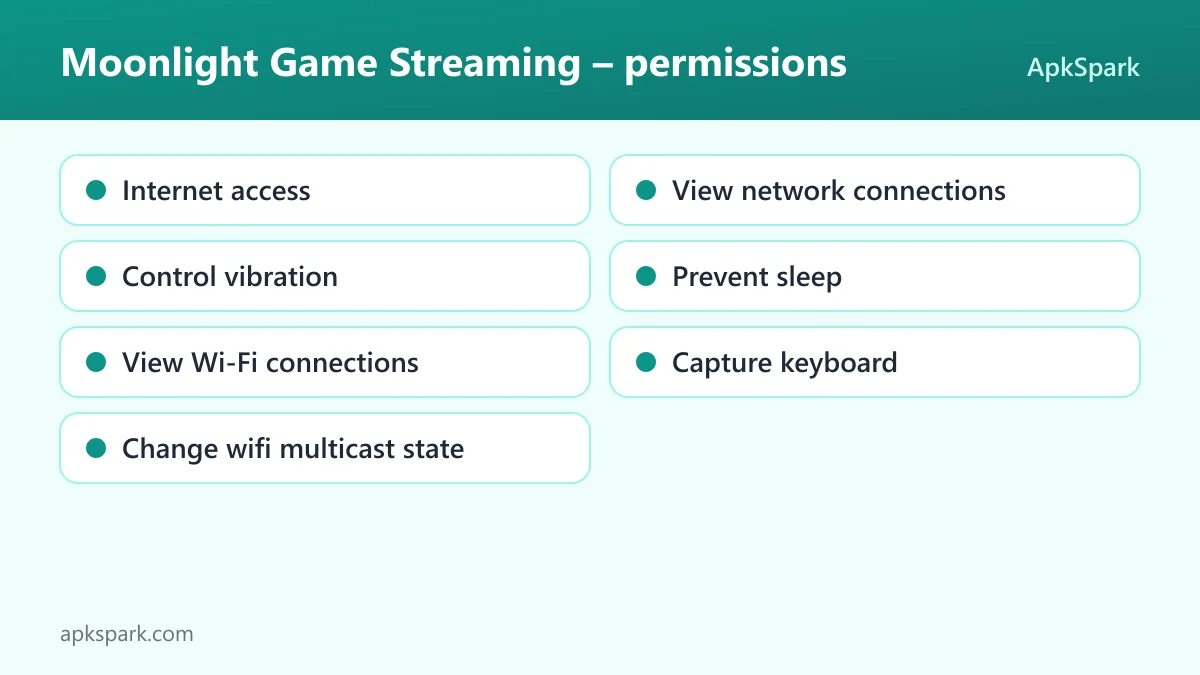
The F-Droid build of Moonlight Game Streaming requests seven permissions, and none is classed as sensitive. On modern Android, sensitive permissions such as camera, location or contacts are requested at runtime with a prompt. The permissions below are normal ones that Android grants at install time.
Internet access: Lets the app connect to the internet. The app needs a network connection to reach your PC, whether on your home network or over the internet.
View network connections: Lets the app check whether the device is online and which network type is in use, for example Wi-Fi or mobile data.
Control vibration: Lets the app make the device vibrate. The app lists force feedback support, so vibration is the likely use, although the facts do not state it directly.
Prevent sleep: Lets the app keep the device awake while a task runs. During a stream, this keeps the screen from turning off while you play.
View Wi-Fi connections: Lets the app read information about Wi-Fi networks. The facts do not say exactly which feature uses it.
Capture keyboard: The app declares the "capture keyboard" permission. Since keyboard input is sent from the device to the PC, it relates to keyboard support, though the facts do not explain it in detail.
Change wifi multicast state: The app declares the "change wifi multicast state" permission. The facts do not document its use; on a local network, multicast is commonly involved in discovering devices.
The list is short and focused on networking and input. There is no request for storage, contacts, location, camera or microphone access. That fits an app whose whole job is to send input to a PC and receive a video stream back. If you want to check how any of these permissions is used in practice, the source code is public and questions can go to the issue tracker.
How to download and install Moonlight Game Streaming APK
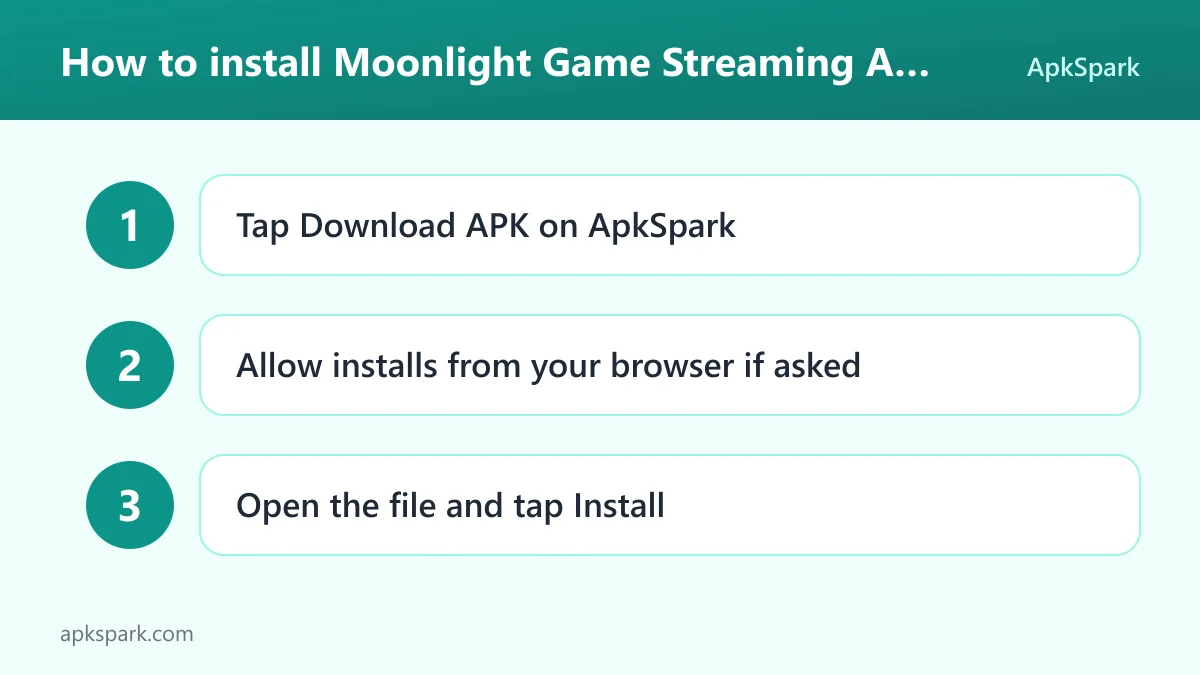
- Tap the Download button on this page.
- When Android asks, allow installs from your browser.
- Open the downloaded file.
- Tap Install.
- Open the app.
If you have never installed an app outside an app store, our guide to installing APK files explains each step in more detail, including the prompt that asks you to allow installs from your browser. The download is 11.1 MB. Installing the app on the phone is only half the setup; the PC side is covered further down.
This Moonlight Game Streaming APK is signed with the F-Droid key. If you already have the app from another store, Android may refuse to install this copy over it because the signatures differ. You would need to uninstall the old copy first, which removes its settings and paired PCs, so you would pair again afterward.
Is Moonlight Game Streaming safe?
Here is what the facts say. Moonlight Game Streaming is free and open source under GPL-3.0-or-later. The full source code is published on GitHub, so anyone can review it.
The APK on this page comes from F-Droid. F-Droid builds this APK from the published source code and signs it with the F-Droid key, and the file is downloaded from the official f-droid.org repository. The F-Droid listing shows the same package if you want to compare details.
F-Droid uses anti-feature labels to flag ads, tracking and similar issues. The listing data for this app shows no anti-features, which matches the developer's statement that there are no ads or in-app purchases.
Pairing adds another layer: a PC only accepts a stream after you enter the PIN shown in the app on the PC itself, either in GeForce Experience or in the Sunshine web interface. More information is on the official website, and bugs can be reported on the issue tracker.
Moonlight Game Streaming system requirements
- Minimum Android version: Android 5.0 or newer.
- Download size: 11.1 MB.
- Supported ABIs: arm64-v8a, armeabi-v7a, x86 and x86_64.
- Version: 12.2.
- Release date: November 13, 2026.
- RAM and storage after install: not documented.
The Android side is only part of the picture. Moonlight Game Streaming also needs a host PC running GeForce Experience with GameStream enabled (NVIDIA only) or Sunshine (any GPU). Keyboard and mouse support works best on Android 8.0 or later, even though the app itself installs from Android 5.0.
For HDR you need an HDR10-capable Android device, a GPU that can encode HEVC Main 10 and an HDR10-enabled game. AV1 needs Sunshine and a supported host GPU. On the network side, the developer recommends a mid to high-end router, 5 GHz Wi-Fi to the Android device and Ethernet from the PC to the router.
Setting up your PC for Moonlight Game Streaming
With an NVIDIA graphics card, the quick setup for Moonlight Game Streaming uses GeForce Experience. Open it on your PC and turn on GameStream in the SHIELD settings page. Then, on your phone, tap the PC in the app and type the PIN it shows into the PC. After pairing, you can start streaming.
With any GPU, including NVIDIA, you can use Sunshine instead. Install Sunshine on the PC from its official releases page, then open the Sunshine web UI on the PC for first-time setup. Back on the phone, tap the PC in Moonlight Game Streaming and enter the PIN in the Sunshine web UI. Sunshine is also required for AV1 and allows up to 16 controllers.
If your PC does not appear automatically, the developer's detailed setup guide explains how to add it manually. The same guide covers streaming over the internet or LTE, using a controller connected directly to the PC, streaming your full desktop and adding custom apps to stream.
A typical session with Moonlight Game Streaming
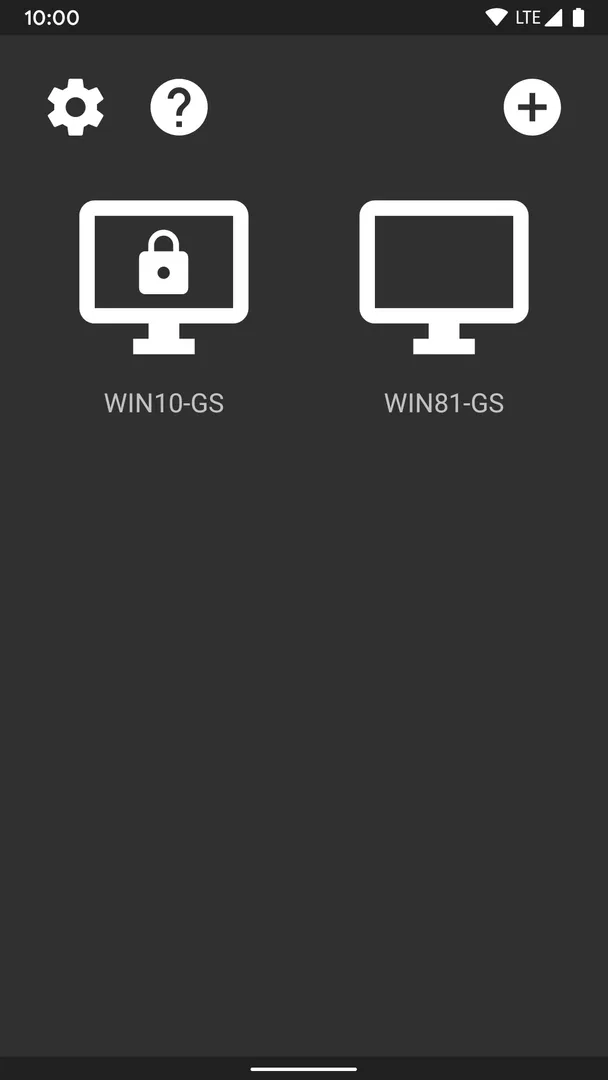
Once the PC is paired, a normal session is short to start. You open Moonlight Game Streaming on your phone, and it shows the PCs it knows about. Tapping your PC lists the games and apps available to stream, including any custom apps you added. You pick one, and the PC launches it while the phone shows the video.
From there, input flows the other way. A controller paired to the phone, whether a PlayStation, Xbox or Android gamepad, sends its buttons to the PC, with force feedback and motion sensors supported. A keyboard and mouse work too, best on Android 8.0 or later. If a launcher or menu needs a mouse and you only have a gamepad, long-pressing Start switches the gamepad into mouse control.
For co-op, friends can connect their own controllers to the same device. Sunshine allows up to 16 connected controllers, and GeForce Experience allows up to 4. When you are done, you end the stream on the phone, and the PC carries on as normal.
Documented limitations of Moonlight Game Streaming
Streaming quality in Moonlight Game Streaming depends heavily on your setup. The developer notes that performance varies with the client device and network, and recommends a capable router, 5 GHz Wi-Fi and wired Ethernet for the PC. On a weak or crowded network, expect lower quality than the 4K 120 FPS ceiling.
Some features need specific hardware. HDR requires an HDR10-capable device, a GPU that can encode HEVC Main 10 and an HDR10-enabled game. AV1 requires Sunshine and a supported host GPU. GeForce Experience works only with NVIDIA cards and caps local co-op at 4 controllers.
Finally, the PC must be on and running host software for anything to work. Moonlight Game Streaming is a remote client, not a standalone game or emulator, so the phone on its own cannot play anything.
Who should use Moonlight Game Streaming?
Moonlight Game Streaming suits people who already have a gaming PC and want to play its library on a phone, tablet or another screen in the house. Because it streams games from any store, you are not limited to one storefront, and the wide controller support covers PlayStation, Xbox and Android gamepads.
Moonlight Game Streaming is also useful beyond games. You can stream programs or your full desktop, use keyboard, mouse or S-Pen input, and reach your PC over the internet or LTE when you are away. Families or friends who want local co-op can connect up to 16 controllers through Sunshine.
If you do not have a capable PC or a reliable home network, Moonlight Game Streaming has little to offer. And despite its listing in the emulators category on this site, it does not emulate consoles; it relies entirely on a PC host.
Tips for getting started with Moonlight Game Streaming
Use Sunshine for the most features: Sunshine works with all GPUs, enables AV1 on supported hardware and allows up to 16 controllers, compared with 4 under GeForce Experience.
Wire the PC, use 5 GHz for the phone: The developer highly recommends Ethernet from PC to router and 5 GHz Wi-Fi to the Android device. This is often the biggest single improvement.
Start with lower settings: Begin below 4K 120 FPS and raise resolution and frame rate once you know your network can keep up.
Learn the gamepad mouse shortcut: Long-press Start to control the mouse with a gamepad, handy for launchers and menus that expect a mouse.
Use the detailed guide for remote play: Streaming over the internet or LTE, adding a PC manually and adding custom apps are all covered in the developer's full setup guide.
Check HDR requirements before enabling it: HDR needs an HDR10-capable device, a GPU that encodes HEVC Main 10 and an HDR10-enabled game.
Alternatives to Moonlight Game Streaming
No related apps are listed for this page yet. You can browse more Emulators apps on ApkSpark to see what else is available in that category, keeping in mind that this app is a PC streaming client rather than an emulator.
Final verdict
Moonlight Game Streaming turns an Android device into a remote screen and controller for your own PC, with support for up to 4K 120 FPS HDR, three codecs and a broad range of controllers. The F-Droid build is open source, free of ads and in-app purchases, and installs on Android 5.0 and newer.
If you have a gaming PC and a solid home network, Moonlight Game Streaming is well worth installing. Without those, there is nothing for it to stream, so set up the PC side first.